

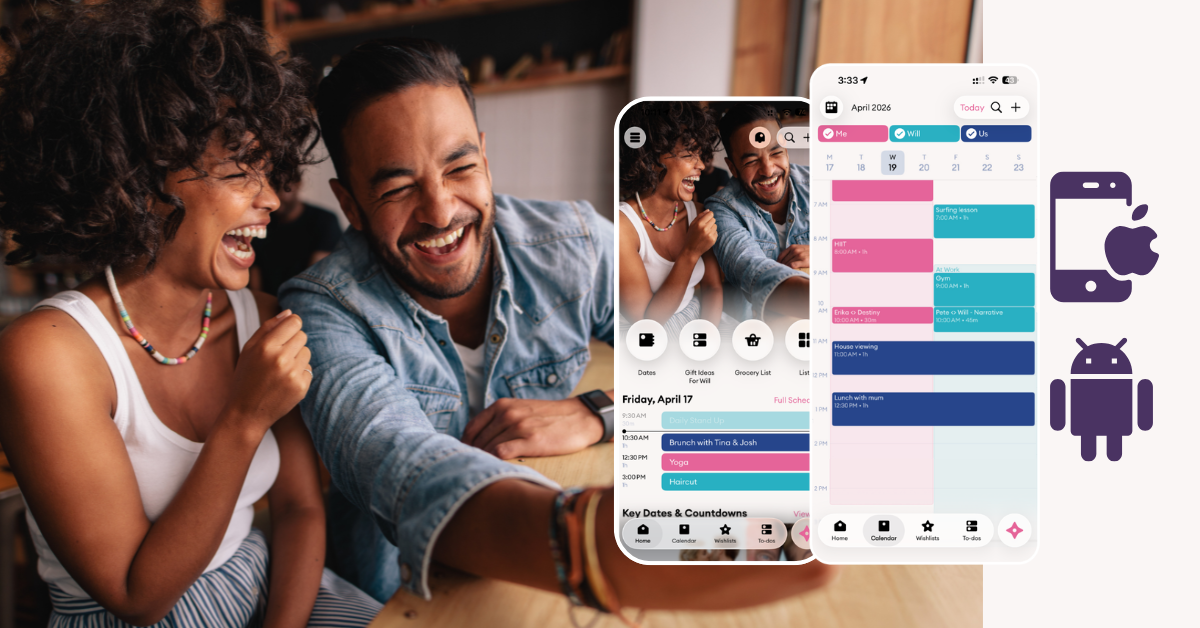

Erika Palmer
Co-Founder of CuplaErika started Cupla with her husband Will after realising how easily date night slips when two busy lives collide. Today she leads the company’s mission to give couples back their quality time — and still swears by a long nature walk and a table at a restaurant neither of them has tried before.
 LinkedIn
If you are in a relationship where one of you uses an iPhone and the other uses Android, sharing a calendar can feel weirdly harder than it should be. Dinner plans that never make it to the Google Calendar, the Apple user putting something in iCal by mistake and the work trip that is talked about but never makes it to the shared view.
It’s an understandable but frustrating problem. Apple and Google built their calendar systems for their own ecosystems first, not for mixed-device couples or families trying to stay in sync across both. There are some workarounds where you can share an iPhone calendar with Android and vice versa, but how good the experience depends a lot on which method you choose.
In this guide, we’ll walk through three ways to do it. The first; the recommended path – a couple-first app that allows you to share your complete schedules, regardless of the device or where the calendars come from. There’s also the slightly awkward Apple option, and finally, a more basic method.
Method 1: Use a couple-specific, cross-platform calendar app
If you want the obvious best answer, this is it.
A cross-platform calendar app is designed specifically for the reality that many couples and families are not both using the same phone, the same default calendar, or even the same accounts. Instead of forcing users to enter everything into one calendar, one person to switch ecosystems or put up with a clunky workaround, it creates one shared layer that works across both.
This is where Cupla stands out.
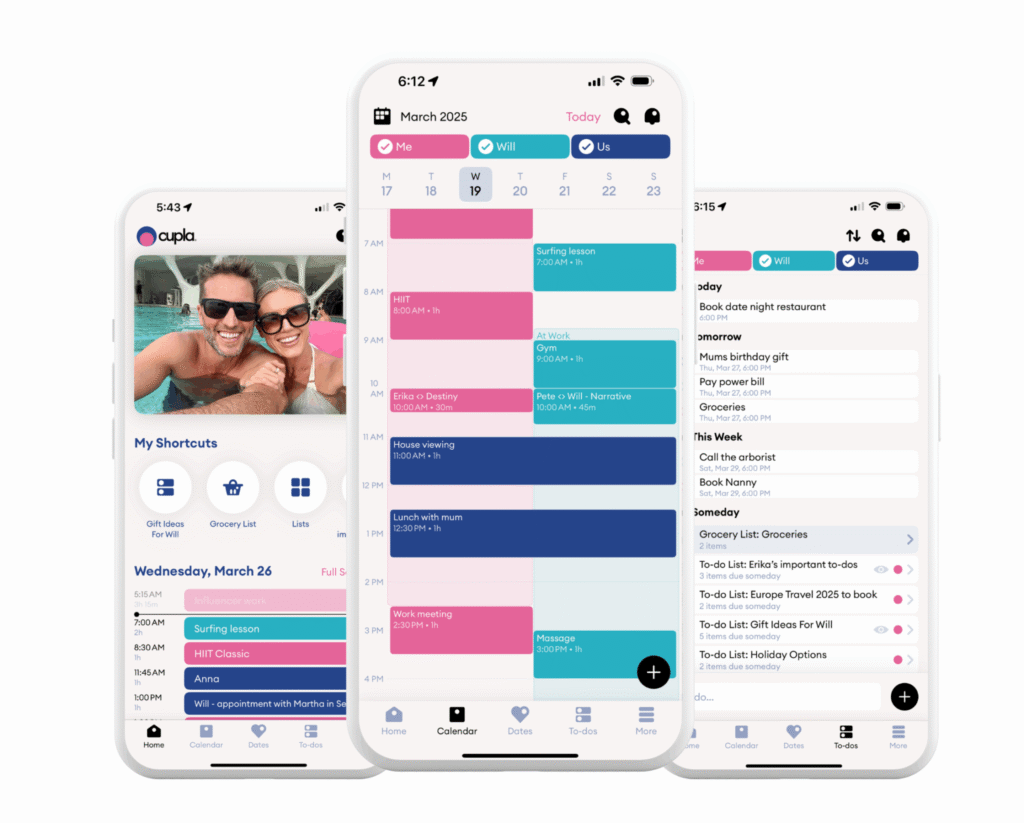
Cupla is built for couples, and it works seamlessly across iPhone and Android. Rather than asking both people to abandon the calendars they already use, it brings them together, side by side, into one shared view. That means you can connect Apple, Google, and Outlook calendars, see what is happening side by side, and actually plan together without exporting links or juggling separate systems.
How to set it up
- Download Cupla on both phones. You can download Cupla for Apple and Android.
- Connect your existing calendars.
- Invite your partner.
- Choose what you want to share and what you want to keep private, you can choose different levels of access for each connected calendar.
- Start using the shared view to plan events, date nights, reminders, and day-to-day life admin.
Why this is better in real life
The problem with most calendar solutions is that it assumes the only goal is technical syncing. But for most couples, that is not really the goal. It’s really about fewer missed plans, less back-and-forth, less mental load, and a clearer sense of what life looks like together. Other shared calendar solutions require you to do something more to achieve this – for example add everything to a specific shared calendar – but this is just adding another thing for busy couples to try to remember to do.
That is why a cross platform calendar matters more than a simple feed or subscription link. When one of you is on Apple and the other is on Android, the best setup is not the one that barely connects the two systems. It is the one that makes the systems stop mattering. Once Cupla is connected, the shared view is automatic, and there’s no change to your current workflow required.
Cupla does that while also giving couples things generic calendars do not. You can see schedules side by side, create shared plans, manage reminders, and reduce the constant “Have I told you about this already?” feeling that mixed-device couples know too well. And because Cupla was built for couples it also has great features to help you prioritise your relationship; things such as Anniversaries and Key Date countdowns, sharing Date Night and travel inspiration via Wishlists and more.
This is also the better fit if you are searching for a shared calendar app for iPhone and Android rather than just a one-off workaround. Google Calendar is fine if you want the free utility version. Apple’s public-link method is fine if you need a rough bridge. But if you want something built for two people planning life together across different phones, Cupla is the stronger answer.
Pros
- Built for iPhone and Android couples
- Works across Apple, Google, and Outlook calendars and all other calendars connected to your device
- No awkward public-link workaround
- More useful for real shared planning, not just visibility
- Designed around couples rather than generic teams or families
- A host of other couple-specific features to enhance your relationship
Cons
- It is another app, so both people need to install it
- If all you want is a very basic free calendar share, Google Calendar may be enough
Our verdict
If your goal is not just to share a calendar between iPhone and Android, but to actually increase connection and communication in your relationship, this is the best route. It is the cleanest setup, the least frustrating experience, and the strongest long-term option for couples.
Method 2: Share an Apple Calendar with Android
This is the method people usually search for when one person is committed to Apple Calendar and does not want to move everything into Google. Technically, it works. Practically, it is the more awkward route.
The reason is simple: Apple Calendar does not natively play as nicely with Android as Google Calendar does with iPhone. The common workaround is to create a public iCloud calendar link, then subscribe to that link from Google Calendar.
How to set it up
- On the iPhone or Mac that owns the Apple calendar, open Calendar.
- Find the iCloud calendar you want to share.
- Turn on Public Calendar or create a public share link.
- Copy the public calendar URL.
- On a computer, open Google Calendar.
- In the left sidebar, click Add other calendars, then From URL.
- Paste the iCloud calendar link and add it.
- The Android user can now view that calendar inside Google Calendar.
What to know before you do this
This method is mainly useful for visibility, not collaboration. In most cases, the subscribed Apple calendar shows up on Android as read-only. That means the Android partner can see the events, but they usually cannot edit them from their side and have those edits flow back cleanly into Apple Calendar.
It can also feel a bit fiddly to set up compared with Google Calendar sharing. You are relying on a public link, configuring it on desktop, and accepting a less flexible sync model. If you just want a quick fix so one person can see the other person’s plans, it can do the job. If you want a genuinely shared calendar between iPhone and Android, this is where the cracks start to show.
Pros
- Lets the iPhone user stay in Apple Calendar
- Gives the Android user visibility into the Apple calendar
- Useful if the goal is viewing only, not full two-way planning
Cons
- Usually read-only on the Android side
- More awkward setup
- Less natural for day-to-day collaboration
- Can feel fragile compared with a proper cross-platform setup
Our verdict
This is the classic “technically possible, but annoying” option. It is fine as a temporary bridge. It is not what we would choose for a couple or family who wants a smooth long-term system.
Method 3: Share a Google Calendar
If you want the cleanest free option, this is usually the best place to start. Google Calendar works on both iPhone and Android, syncs in real time, and is straightforward to share with another person.
See related article: Comparison for couples: Cupla vs Google Calendar
How to set it up
- Open Google Calendar on desktop.
- In the left-hand sidebar, find the calendar you want to share under My calendars.
- Click the three dots next to that calendar, then go to Settings and sharing.
- Under Shared with, click Add people and groups.
- Enter your partner’s Google email address.
- Choose the permission level you want to give them, then send the invite.
- On iPhone, make sure the iPhone user is actually adding events into Google Calendar, not only into a separate Apple-only calendar.
- On Android, the shared calendar will appear inside Google Calendar once the invite is accepted.
Why this works
Google Calendar is built for cross-platform use. It runs well on iPhone, Android, desktop, and web, so it removes most of the device-level friction straight away. If both people are happy to live inside Google Calendar, this is the easiest free way to create an iPhone and Android shared calendar.
Pros
- Real-time sync across both devices
- Free and reliable
- Easy to share with editing permissions
- Works well for couples, families, and anyone already using Gmail
Cons
- Both people need to be comfortable using Google Calendar
- It works best when events are entered directly into Google Calendar
- It does not solve the bigger relationship-admin problem on its own
- Privacy settings are functional, but not especially nuanced for couples
Our verdict
If you are both already in the Google ecosystem, this is a solid option. It is practical, dependable, and much better than trying to manually mirror events across two separate systems. But it is still basically a shared utility calendar. It helps you stay organized, but it does not do much beyond that.
- Lets the iPhone user stay in Apple Calendar
- Gives the Android user visibility into the Apple calendar
- Useful if the goal is viewing only, not full two-way planning
Conclusion
If you are trying to share a calendar between iPhone and Android, there are three real options.
You can use Google Calendar if you both are happy to work inside Google. You can use the Apple public-calendar workaround if you only need basic visibility from iPhone to Android. Or you can skip the workarounds and use a cross-platform app built for this exact problem. You can download Cupla for Apple and Android today and try it now.
For most couples, that last option is the one that makes the most sense. It is simpler, cleaner, and much more useful once real life gets busy.
Quick comparison
| Method | Best for | Two-way | Setup | Main downside |
| Cupla | Couples who want one shared system across iPhone and Android | Yes | Easy | Requires using a dedicated cross-platform app |
| Apple Calendar to Android via public link | Quick visibility from iPhone to Android | No, usually read-only | Medium | Clunky and limited |
| Google Calendar | Couples who already use Google for everything | Yes | Easy | Both people need to live in Google |
FAQ
Can you share an iPhone calendar with an Android phone?
Yes. The easiest way is through Google Calendar or a cross-platform app like Cupla. You can also share an Apple calendar with Android using a public iCloud calendar link, but that setup is more limited: Android users can only view events, not edit them.
What is the best shared calendar for iPhone and Android?
Google Calendar is a solid free option, though it requires adding all events to one shared calendar. For a shared calendar app built specifically for couples (one that works across iPhone and Android without the usual friction) Cupla is the better choice.
Can Android edit an Apple Calendar?
Usually not: at least not in any clean, reliable way. Through the public iCloud link workaround, Android users can typically subscribe to and view an Apple calendar, but full two-way editing is where the setup falls down. For real collaboration, use a cross-platform app instead.
Is Google Calendar better than Apple Calendar for mixed-device couples?
Yes, usually. Google Calendar is more cross-platform by nature, syncing smoothly on both operating systems. Apple Calendar works great if both partners are fully inside the Apple ecosystem, but once one person switches to Android, Google becomes the far more practical option for everyday sharing.
What if we want more than just calendar sharing?
That’s where dedicated couples apps matter. A generic calendar helps you see each other’s events, but a cross-platform app like Cupla helps you actually plan life together: with shared to-do lists, reminders, and date night planning, reducing mental load and keeping everything in one place.
If you want a shared calendar app for iPhone and Android that actually works for couples, try Cupla and see everything in one shared view without the usual cross-platform mess. Download Cupla for Apple and Android and try it today!


